Unlocking the amlogic control board to allow downgrading the stock firmware date and further installation of the “VNISH” firmware
Amlogic control boards with the standard firmware installed from September 2025 and newer have the ability to downgrade the firmware via SD card disabled. This guide describes a method to enable this capability. Before starting, make sure you have the following:
- AML control board and 12 V power supply
- A computer or laptop with Windows operating system installed
- Any USB-UART adapter with drivers installed (in our case Silicon Labs CP2102)
- A terminal program (in our case PuTTY) for connecting to the control board and sending commands

Follow these steps:
Connect the adapter to the computer. Determine the assigned COM port number (in our case – COM7)

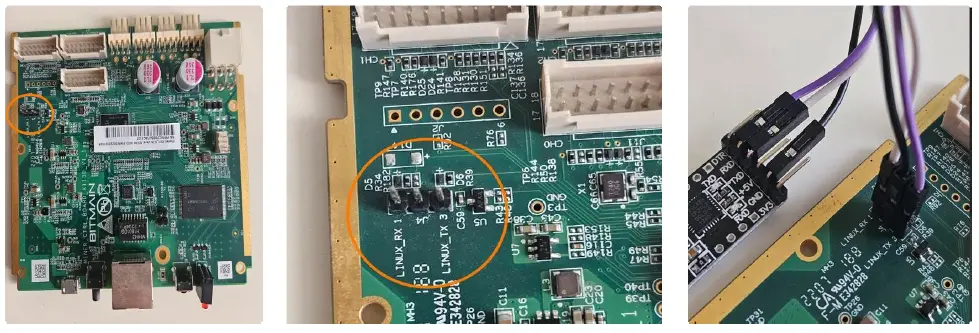
You need to locate the UART connector (3 pins RX, TX, GND) on the control board.
Connect the USB-UART adapter to the control board according to the following wiring: GND, RXD → TX, TXD → RX
PuTTY Setup
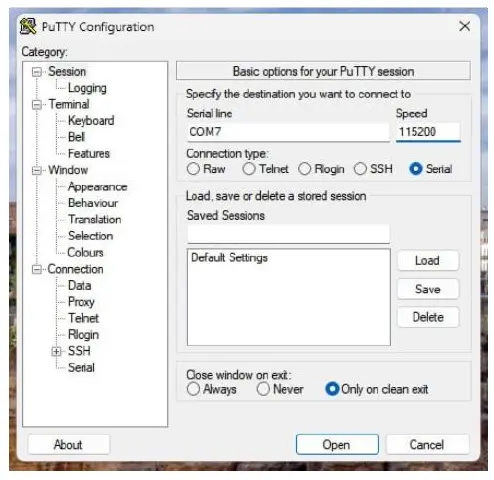
Open the PuTTY terminal window. Enter the correct COM port number and set the baud rate to 115200. Leave all other parameters as default. Click “open”.
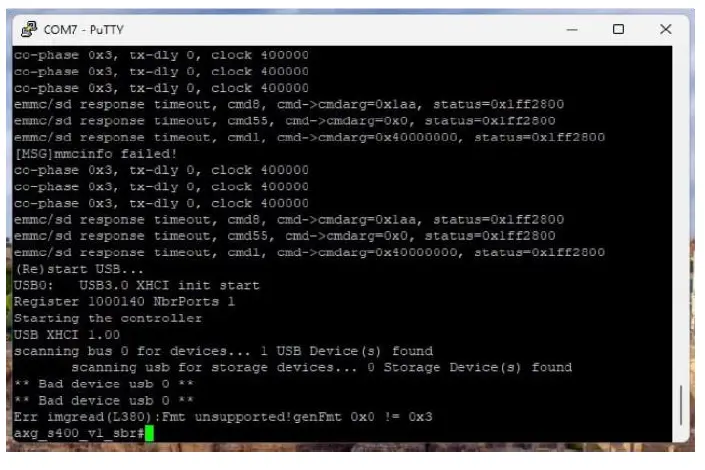
At this stage you can verify that the connections are correct. After powering the control board, the device boot log should appear in the terminal window.
Unlocking process
Turn off the control board and short the JP2 jumper using tweezers or a screwdriver.

Make sure the terminal window is active. Power on the control board. As soon as the first boot line appears in the terminal, quickly release the JP2 jumper and press the spacebar several times in the active terminal window.
After these steps the ENV loading process should start. If this does not happen, which is acceptable, do the following: Turn off the control board and power it on again. Briefly short the JP1 or JP2 jumpers a couple of times. This should force the board into U-Boot boot mode. As a result, the following message should appear in the terminal window:

Enter the command: setenv bitmain_usb_switch 1. This command enables the USB port. Press Enter.
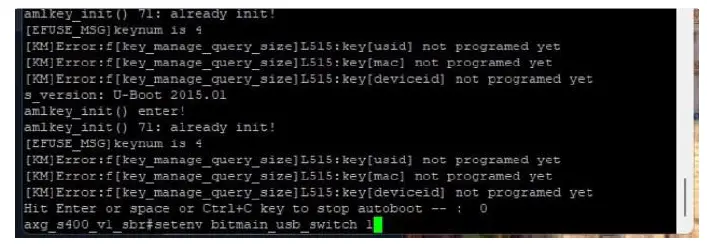
Next enter: saveenv. This command saves the setting. Press Enter.

Reboot the control board. After that you will be able to downgrade the current firmware version using an SD image, which will later allow you to install the Vnish firmware.
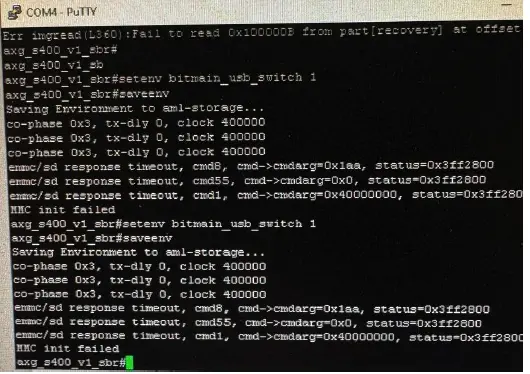
If you are unable to unlock the port and see this window, enter the commands in this order:
– saveenv
– setenv bitmain_usb_switch 1
– saveenv