
Hashcore Toolkit installing Vnish firmware
How to install Vnish firmware using Hashcore Toolkit
- Download NEW Official Hashcore Toolkit (Be sure to unzip the archive) for:
- Open the Toolkit
- Click the “new ranges group” button
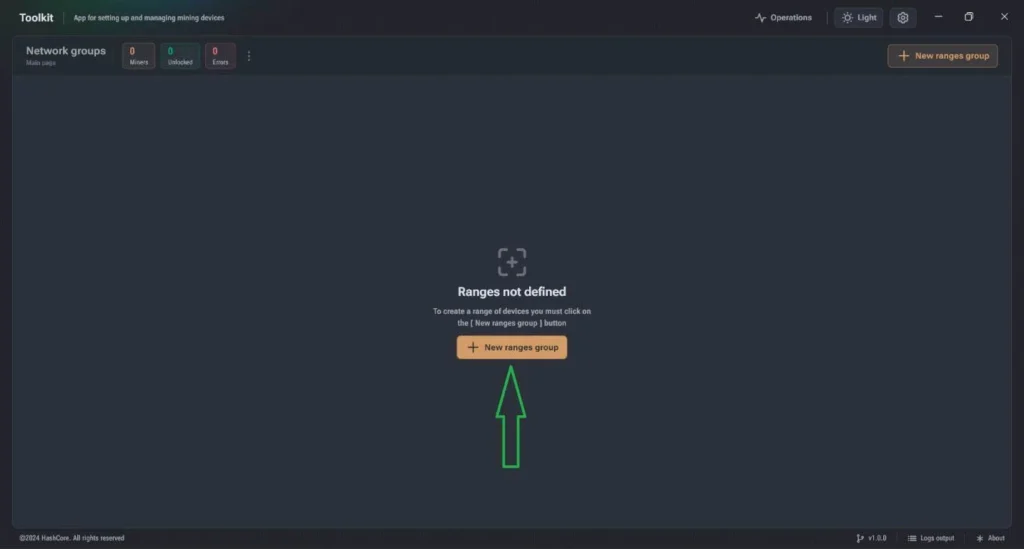
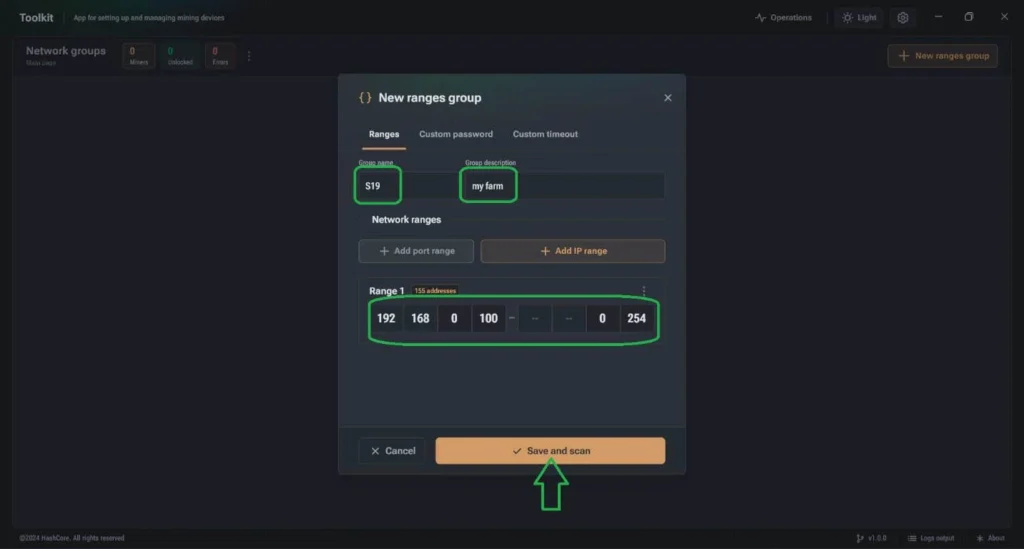
- Now you need to create a group for the IP range:
- Select a name in the “Group Name” field.
- Place your description in the “Group description” field.
- Select the IP range in the range field.
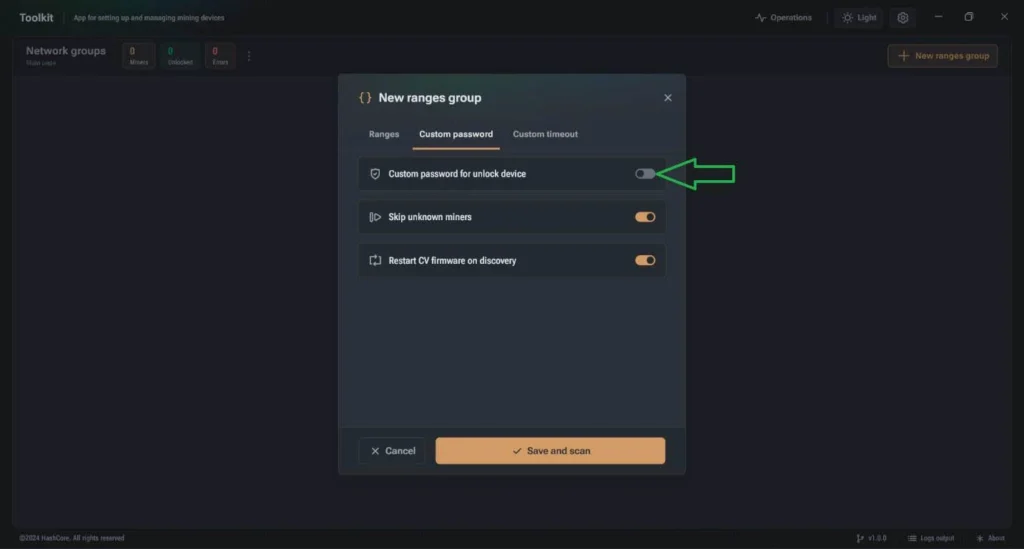
- If you changed the default (root) password, click the “Custom password” tab and enable “Custom password for unlock device».
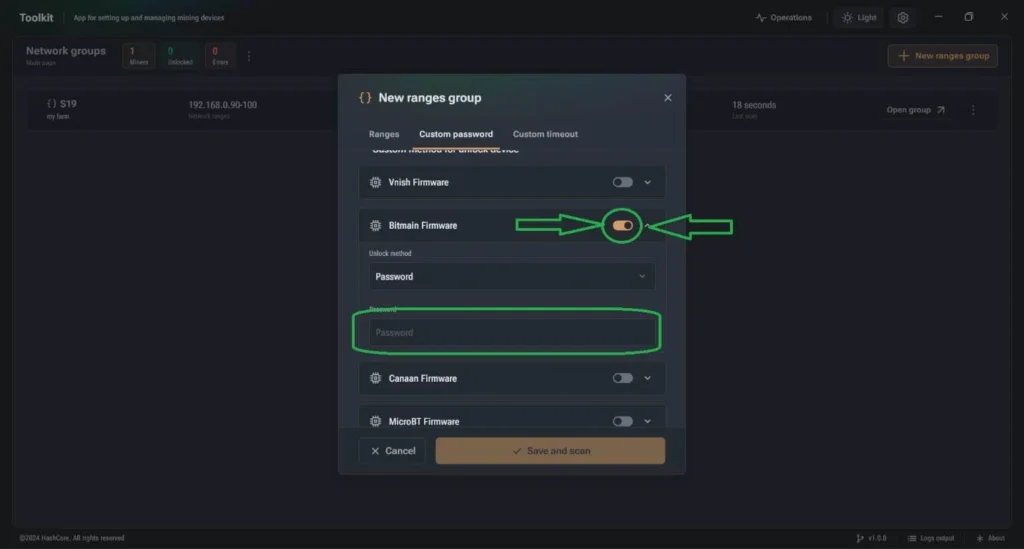
- Then scroll down and turn on “Bitmain Firmware” and click the drop-down menu to see the password. In the “Password” field, you can specify your miner password.
- Click “Save and scan“.
- Click “open group” to see miners in the IP range.
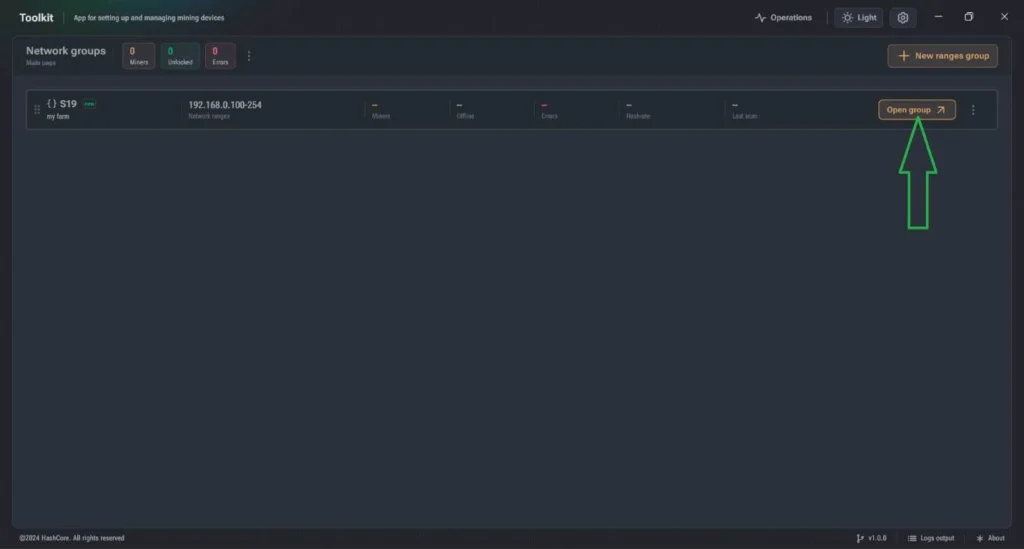
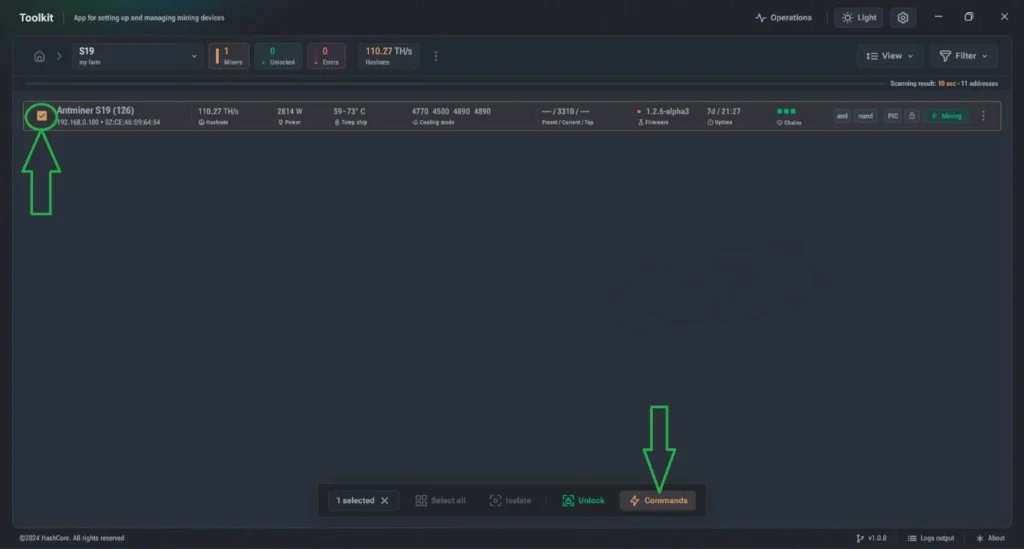
- Now select the miner you want to install pre-downloaded Vnish firmware, and click the “Commands” button:
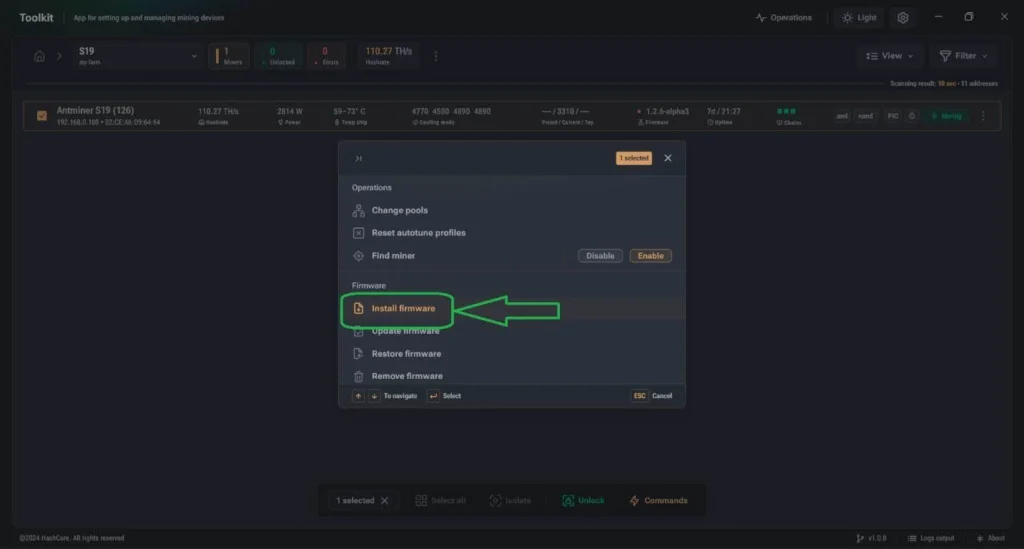
- On the “Commands” page, click “Install the firmware“.
-
Then the installation page will appear: click the “Select” button to specify the folder where the firmware file is located, the file itself will not be visible – this is normal (the firmware files are inside (DO NOT UNPACK THE ARCHIVE WITH THE FIRMWARE!)), fill in the fields as shown in the figure below:
(with example file name: vnish-t21-aml-nand-v1.3.7-install.tar.gz)
- Firmware name: vnish
- Firmware version: 1.3.7

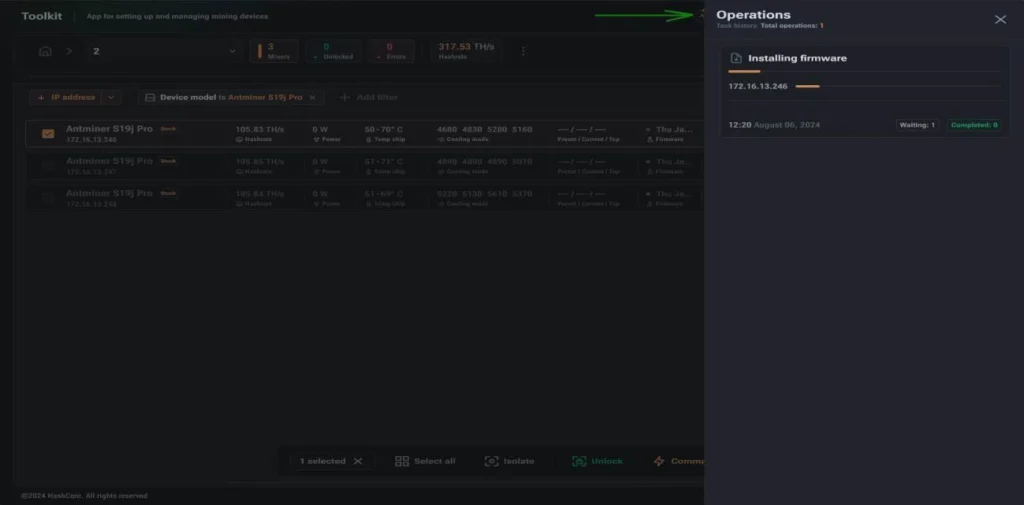
- In the “Operations” section, you can view the installation process, if any error was made, the error decoding will be indicated
• The firmware can be installed using Toolkit 1.7.1 and newer on any stock firmware date, except:
- Antminer L9: FR-1.19(260302-L9)
- Antminer S19k Pro: FR-1.28(251010-S19k Pro)
- Amlogic (a113d) control boards with firmware from September 2025 and newer. Read the instructions!
• If you have BITMAIN firmware installed that cannot be flashed via Toolkit and you see an SSH error, you need to use the INSTRUCTIONS for installing the required stock SD image for your model and control board type, followed by Vnish firmware installation using Hashcore Toolkit.
Notes
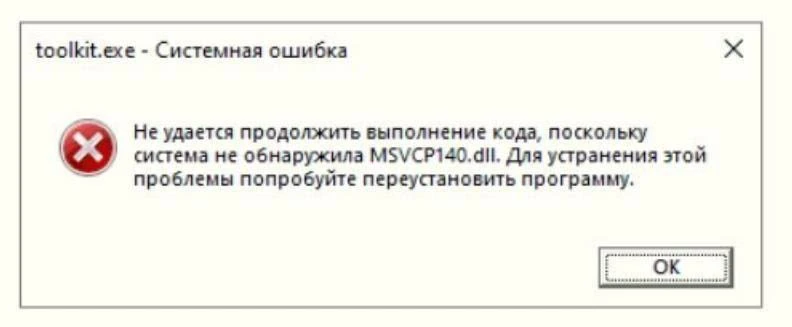
If a library availability error occurs when opening the Toolkit, install the latest supported versions of Visual C++:
If you have any questions or problems installing Hashcore Toolkit, we are happy to help you. To do this, write to us in support chat.